Every AI assistant or automation connected to a messaging platform needs a way to act on your behalf: sending a message, managing a channel, pulling context from a conversation. Rocket.Chat 8.8 gives agents a standard way to do that with a native MCP server, so any MCP-compatible agent can work inside your workspace without your team building and maintaining a custom integration for it.
This release also brings tighter security and more reliable calling: private rooms can be forced to encrypt by default, ABAC-managed rooms can display classification banners, SAML sign-in moves to the system browser for phishing-resistant MFA on mobile, plus other minor improvements and bug fixes.
01Native MCP Server (alpha): Let agents act in Rocket.Chat without custom integration code
Rocket.Chat 8.8 ships a native Model Context Protocol (MCP) server, the newest addition to the AI Center panel, Rocket.Chat's hub for AI capabilities like semantic search, introduced in 8.7. It's available in alpha and requires the Rocket.Chat AI bundle add-on. MCP is the open standard other platforms are converging on for connecting LLMs and agents to real tools, which means agents already built to speak MCP don't need anything Rocket.Chat-specific to work here. With this release, Rocket.Chat speaks that same protocol natively, so any MCP-compatible agent can call it directly.
Why it matters
Connecting an agent to a platform normally means someone has to learn that platform's API, decide which endpoint to call for which action, and keep that mapping current as things change. MCP moves that decision to the moment it's needed: the agent's own LLM works out which tool to call based on what the person actually asked for. For your team, that turns integration work from something you build and maintain into something you point an agent at.
In practice
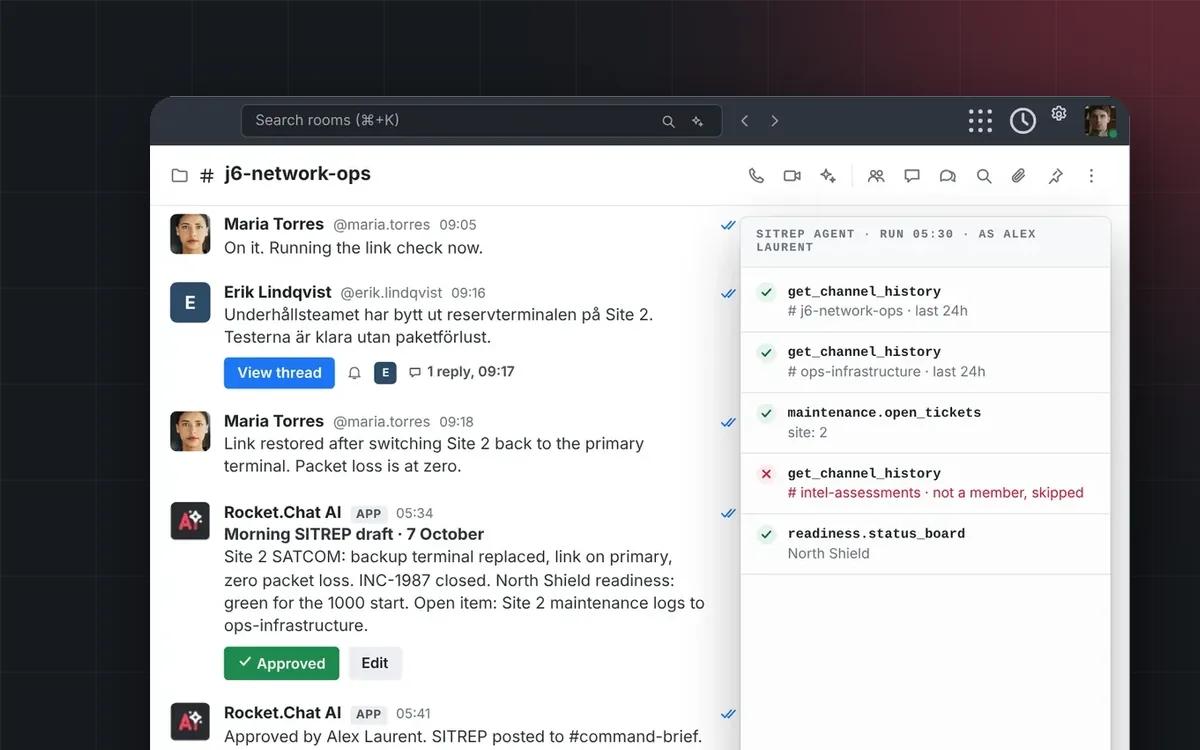
A security operations lead at a government agency can point an internal assistant at the Rocket.Chat MCP server and ask it to read every unread message across the channels its incident response team belongs to, or add an analyst to a channel the moment an incident opens, and the agent calls the right tool automatically instead of the security team writing and maintaining a REST integration for each action. In an internal demo, that same pattern extended to a second agent connected to Jira, so a single incident thread moved between both platforms without anyone switching context or learning either one's API. That's the shift MCP makes possible: the same agent framework an agency already uses to connect other case-management and ticketing tools now works with Rocket.Chat too.
Getting started
An admin turns the MCP server on from the AI Center panel, and each person connects with their own personal access token, so access maps to who they already are in Rocket.Chat rather than a shared credential. The default tool set is deliberately small, giving you a safe way to try an agent against Rocket.Chat before deciding whether to open up more of the API to it. As an alpha capability, it's available on Enterprise plans with the Rocket.Chat AI bundle add-on, and behavior may still change before general availability.
Read more in our documentation.
02Other enhancements
Voice call improvements
Screen sharing for voice calls is now generally available, and call controls like screen share, hold, and transfer only show up when the active call actually supports them. Calls also no longer require a working microphone: if no input device is found or access is denied, you can still continue, call, or accept, and switch the mic on later once it's sorted out. That keeps a call or screen sharing session moving instead of blocking someone over a hardware issue at the worst possible moment. Rocket.Chat Voice is an Enterprise plans add-on.
Stronger and frictionless SAML security on mobile
Signing in with SAML on our mobile and desktop apps now happens directly through your device’s native system browser, enabling full support for phishing-resistant MFA methods such as hardware security keys (like YubiKeys) and biometric passkeys on mobile devices—a level of protection traditional embedded webviews simply couldn't handle. Admins can continue managing SAML settings as usual under Administration > Workspace > SAML.
Classification banners for ABAC-managed rooms
Admins can create US Government-style classification banners for channels and teams, covering attributes such as access level, special access programs, releasability, and colors, from a new workspace setting. Every member of a room sees a colored classification banner above the room header, so the room's sensitivity is visible at a glance instead of something people have to already know. It's built for defense deployments that already use ABAC to control room access and need that same classification context surfaced consistently to every member.
Force end-to-end encryption on private rooms
A new workspace setting makes every newly created private room encrypted by default and locks the encryption toggle on when someone creates a channel or team, so encryption isn't a step anyone has to remember or opt into. Creating an unencrypted private room is rejected, and starting a discussion under an unencrypted private parent prompts the user to make the parent public or turn encryption on instead. Public rooms are unaffected, and federated rooms are exempt because federation doesn't support end-to-end encryption yet.
Status visibility
From the user menu in the top navigation bar, or from the status fields in My Account > Profile, anyone can choose specific people who shouldn't see their presence or status message, without going invisible to everyone else. Everyone on that list sees the person as offline, indistinguishable from someone who's genuinely offline, and hidden status is left out of user lookups and search results too. Changes apply live, with no reload needed, and the block can be lifted at any time. To use this feature, a workspace administrator must first enable it in the account privacy settings.
03Bug fixes
This release includes a number of fixes to improve overall stability, performance, and user experience. For the full list, see the official release notes.
04How to update
SaaS workspaces
Cloud workspaces update automatically. Rollout happens gradually and can take a few weeks to reach every workspace; contact support if you need earlier access.
Self-managed workspaces
Follow the update instructions in the documentation to upgrade to 8.8.